


 1-888-674-4601

Elementary Math Curriculum and Supplemental Resources
ORIGO Education delivers Elementary Math Curriculum, Supplemental Resources, and Professional Learning that addresses the needs of learners from Pre-K through elementary school.


ORIGO Education
has partnered with educators for over 25 years to make math learning meaningful, enjoyable and accessible to all.
About The ORIGO Approach
ORIGO Stepping Stones 2.0 Core Curriculum
Follow the path to meaningful and engaging math instruction for Grades K through 6. Learn more and see the latest Alignment and Usability Report from EdReports.
Learn More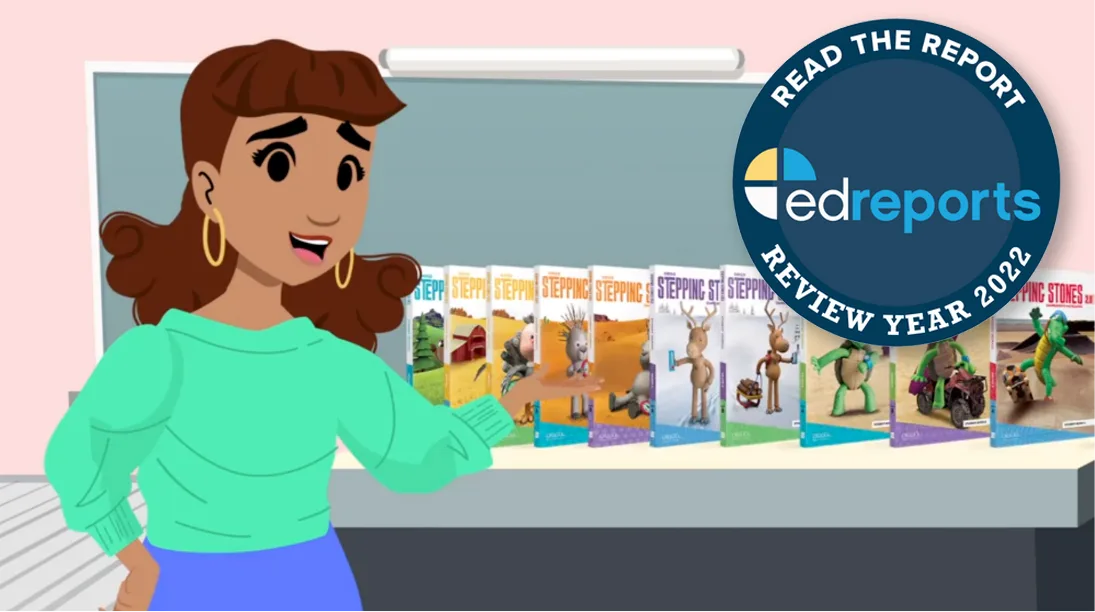
 Teacher Resources
Teachers have access to a variety of print and digital tools to implement instruction.
Learn More Student Resources
Student resources guide thinking using interactive tools that bring learning to life.
Learn More Assessment
Stepping Stones offers you all the assessment types you need to both inform instruction and measure growth.
Learn More
Professional Learning
ORIGO Education partners with you every step of the way. Learn more about our tools and services to help you embark on a successful implementation.
Learn More
Supplemental Resources
Add new resources today for your school or district from our comprehensive catalog of Pre-K through Grade 6 math resources.
Learn More
I think the beauty of the ORIGO Stepping Stones program is that it allows time for kids to explore and think about the math before a teacher tells them, “this is what you are supposed to be learning.
The ORIGO Stepping Stones program provided us with common language. So, when we were talking at team meetings, we all had the same language and that commonality really strengthened our professional learning communities as well.
The ORIGO Stepping Stones program coupled with the on-site professional development ORIGO provided led to a deep shift in our instruction of mathematics.
We’re definitely seeing a lot of trends of our fluency data increasing and kids really making some big gains around fluency in addition and subtraction as well as multiplication and division. A lot of the TAs are really excited about ORIGO and the games that the students are playing, the skills that they’re picking up, and the kids are even excited!